
MatchHalf gives you several ways to create an account, return to your profile, and get help from a bot. Discord is now part of that experience, alongside email and password, Google, Facebook, Telegram, and WhatsApp. This guide explains what each option does and how to connect another account without starting over.
Choose how to sign up or sign in
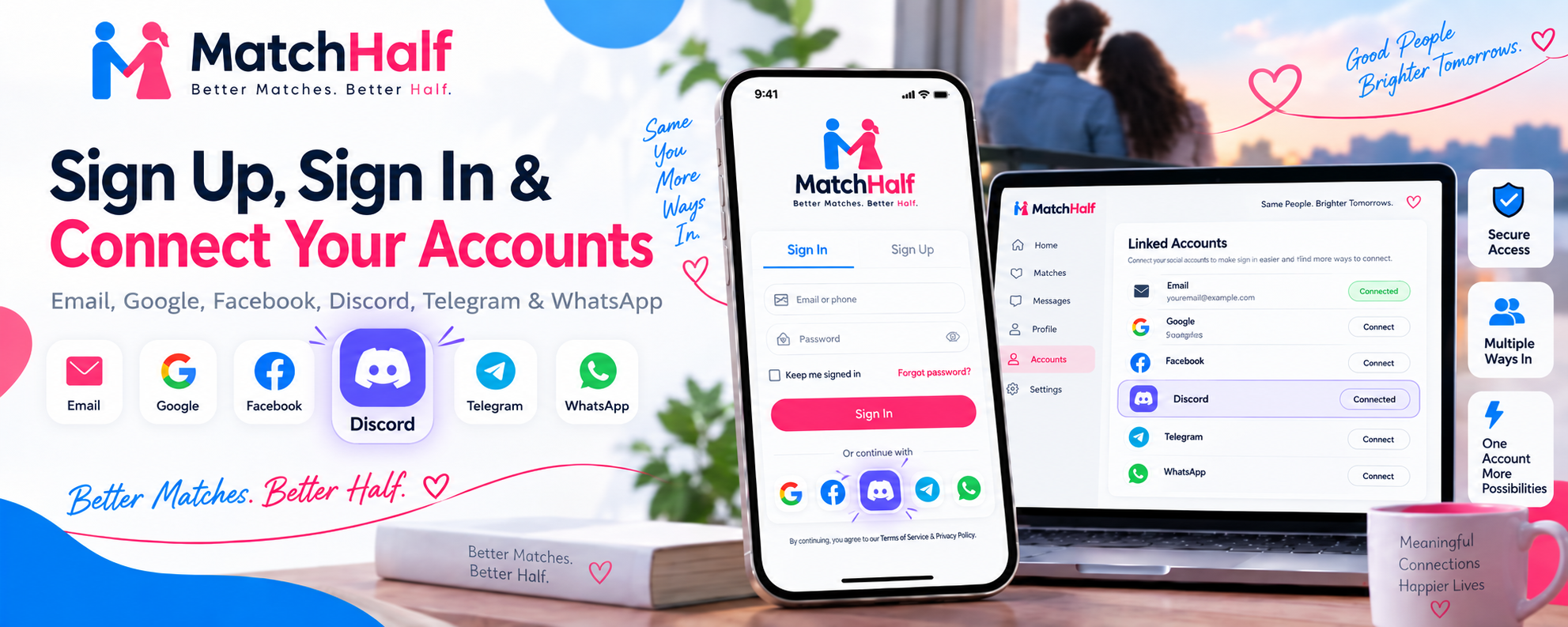
Start from Create an account or Log in. The options shown depend on which signup methods are enabled. If an account-type selector appears, choose the appropriate type when registering. On the login page, automatic detection uses your existing account type.
Email and password: register with your details and a unique username, then follow the verification email. Once verified, sign in with either your email address or your exact username and password.
Google or Facebook: choose the provider button and complete that provider's sign-in and permission screen. MatchHalf verifies the provider identity before allowing access.
Discord: choose the Discord button, sign in to Discord if needed, and authorize MatchHalf to access your basic profile and email. Your Discord email must be verified. If it is not, verify it in Discord before trying again.
Telegram or WhatsApp: use the available bot entry point for guided account creation, account linking, or login help. These conversations provide assistance; opening a bot does not automatically sign your browser in to MatchHalf.
Social sign-in can create a new account when registration is available. A connected provider identity returns you to its existing MatchHalf account. If you already have an account and want to add another provider—especially one using a different email—sign in first and use Linked Accounts as described below.
Finish email signup and recover access
After email signup, check your inbox and spam folder for the verification link. New verification links last 24 hours. If delivery fails or a link expires, use the verification page to request another email; you do not need to register again. A verified email does not override a disabled account or a temporary restriction on sign-in.
If you forget your password, use the password-recovery option on the login page. If you joined through a social provider and have no MatchHalf password, sign in through that provider, then open Settings → Account & sign-in → Email & Password to create one. Having another working login method helps you keep access if a connected service becomes unavailable.
New accounts join the MatchHalf Official community as part of account creation. Welcome and verification messages explain the next steps without requiring you to create a second account.
Add the MatchHalf Discord app
Use the Discord app installation link shown alongside the Discord sign-in options, or add MatchHalf commands to your Discord account.
Review Discord's installation screen and complete the authorization.
Open a conversation where your installed Discord apps are available, such as a direct message with MatchHalf, and type
/matchhalf. Choose a subcommand from Discord's suggestions.
Installing the app adds commands to your Discord account. It does not create a MatchHalf account, link a provider to an existing member, or sign you in to the website. Those are separate actions.
/matchhalf signupopens the secure MatchHalf account-creation page./matchhalf loginopens the MatchHalf login page./matchhalf profileopens your MatchHalf profile page./matchhalf accountopens Account Settings, including your linked accounts./matchhalf helpexplains the commands and provides a website link.
Each command replies privately to the person who used it, with a button for the relevant page. Discord marks these responses as visible only to you. Pages that require a MatchHalf session will ask you to sign in if necessary. The Discord app does not collect passwords, verification codes, or profile edits in chat, and it does not grant access to private pages by itself.
Link Google, Facebook, or Discord to an existing account
Sign in to the MatchHalf account you want to keep.
Choose Connect beside Google, Facebook, or Discord.
Choose the intended account on the provider's permission screen and complete authorization.
Return to Settings and check that the provider shows Connected.
This flow attaches the verified provider to the member who started it. It does not switch your current MatchHalf account, overwrite your account email, or merge two member accounts. A different provider email can be linked when you prove access to that provider. An identity already associated with another MatchHalf member cannot be attached to yours.
Link requests expire after ten minutes and can be completed once. If you cancel, take too long, change accounts, or see a failed-link message, return to Settings and start a fresh attempt. If a different identity from the same provider is already connected, disconnect it before connecting its replacement.
Once linked, use that provider's button on the login page to return to the same member account. For connected social providers, MatchHalf follows the provider identity even if you later change the email used by that provider.
Use the Telegram assistant
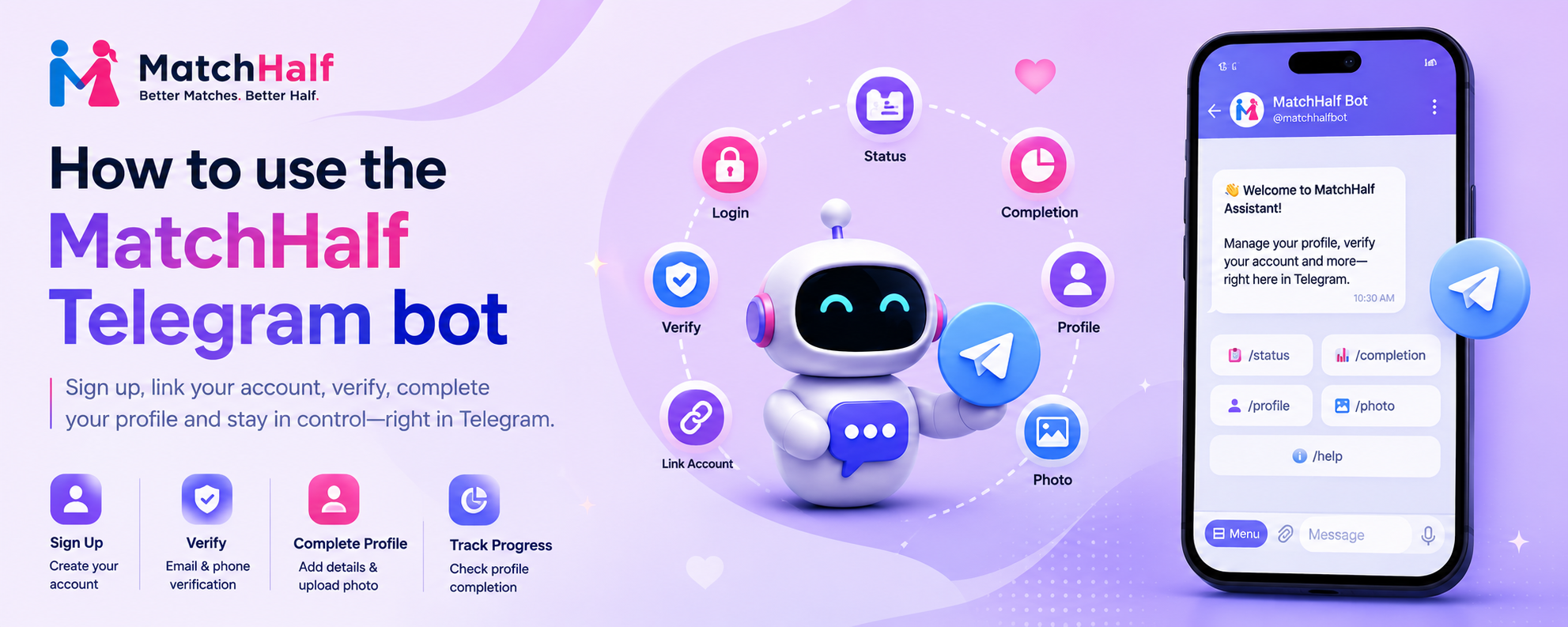
Open Telegram through MatchHalf's signup options or the Open bot action in Linked Accounts. Use the menu buttons or these commands:
/startopens the main menu;/helpexplains the available commands./signupguides you through creating an account, including email and phone verification steps./loginhelps you retrieve your username and, when needed, set a new password. An unlinked conversation first checks access to the account through an email code. An existing password cannot be displayed./linkconnects the Telegram conversation to an existing MatchHalf account after an email-code check./statusshows profile and verification status;/completionshows profile completion and missing details./profileguides you through supported personal-profile fields./myphotoshows your current profile photo;/photostarts a profile-photo upload./verifystarts the available email or phone verification steps./cancelends the current flow so you can choose another action.
Follow the prompts in the official bot conversation. When a phone number is requested, include its country code, such as +441234567890. Bot verification codes have a five-minute window; request a fresh code if one expires. Bot-assisted verification and profile completion remain separate from facial verification.
Use the WhatsApp assistant
Open the official WhatsApp conversation using the signup option or Open chat in Linked Accounts. Type commands to see the available actions, or use the interactive command menu when it is shown.
signupstarts guided registration and the required verification steps.loginhelps you retrieve your username or reset your password; it does not reveal your existing password.linkconnects the WhatsApp identity to an existing account using an email verification code.statusshows profile and verification information.helpexplains the assistant,commandslists its actions, andcancelends the current flow.
WhatsApp currently provides these account-assistance commands. The Telegram profile-editing and photo commands are not part of the WhatsApp command menu.
Connect or disconnect a messaging account
To link Telegram or WhatsApp, start from Linked Accounts, open the official conversation, and choose /link on Telegram or link on WhatsApp. Enter the email of the existing MatchHalf account, then the code sent to that inbox. Return to Settings to check the updated connection status.
A messaging identity cannot be attached to a different member while it is already linked. If the member already has another Telegram or WhatsApp identity connected, disconnect that connection in Settings before replacing it.
Use Disconnect beside a connected service to remove its link. For Google, Facebook, and Discord, MatchHalf prevents removing your last usable website login method: keep another connected social provider or a working password first. A verified phone number or a messaging-bot connection does not count as a replacement website sign-in method. A disconnected social identity must be reconnected through Settings before you can use it to sign in again.
Know what each connection gives you
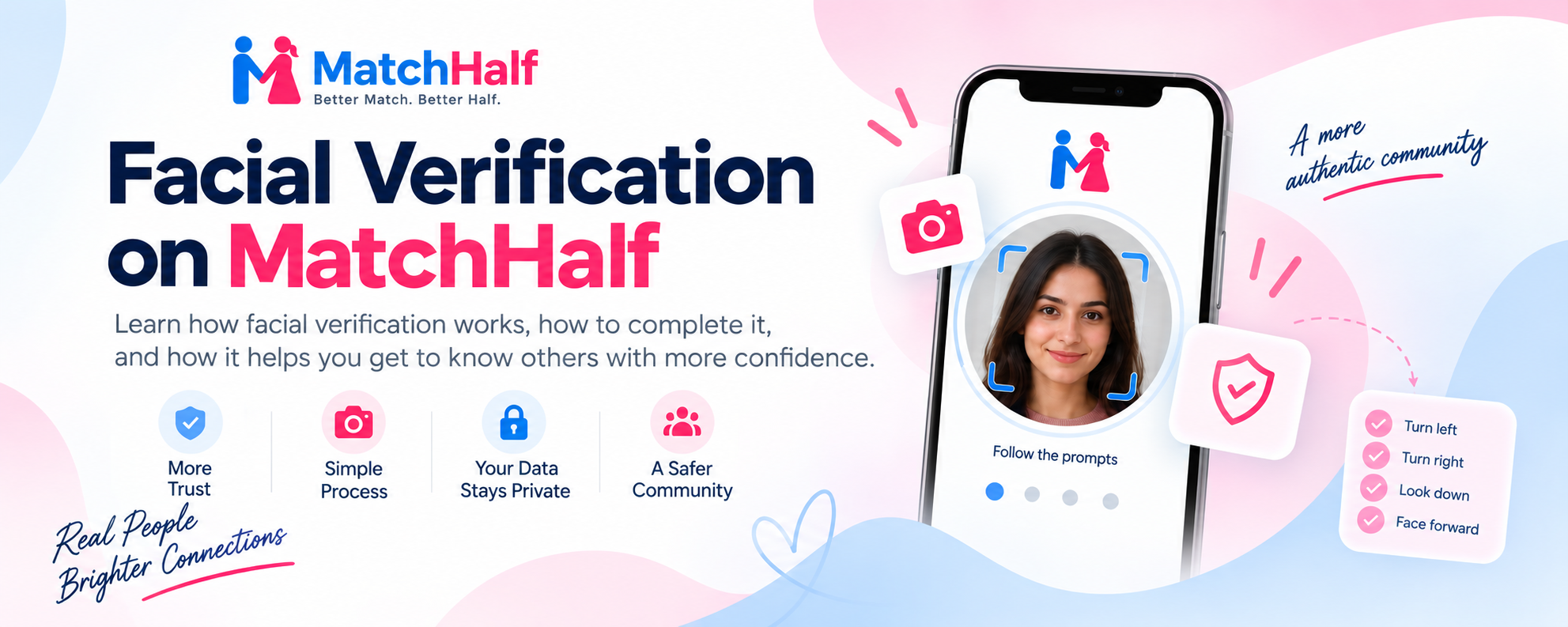
Discord commands are private shortcuts to the website. Google, Facebook, and Discord sign-in buttons authenticate a website session. Telegram and WhatsApp provide the guided assistance listed above. Email, phone, and facial verification are separate checks; installing a bot or linking a social provider does not complete all of them.
MatchHalf records signup and sign-in methods for its internal account reports. Bot reach reports can record the platform identity and interaction counts; the Discord contact record contains an ID, username or display name, and activity counts rather than passwords, verification codes, or message content. Linking an account does not rewrite how it originally signed up.
To review your own connections, open Account & sign-in. For email, phone, or facial checks, use Verification settings.