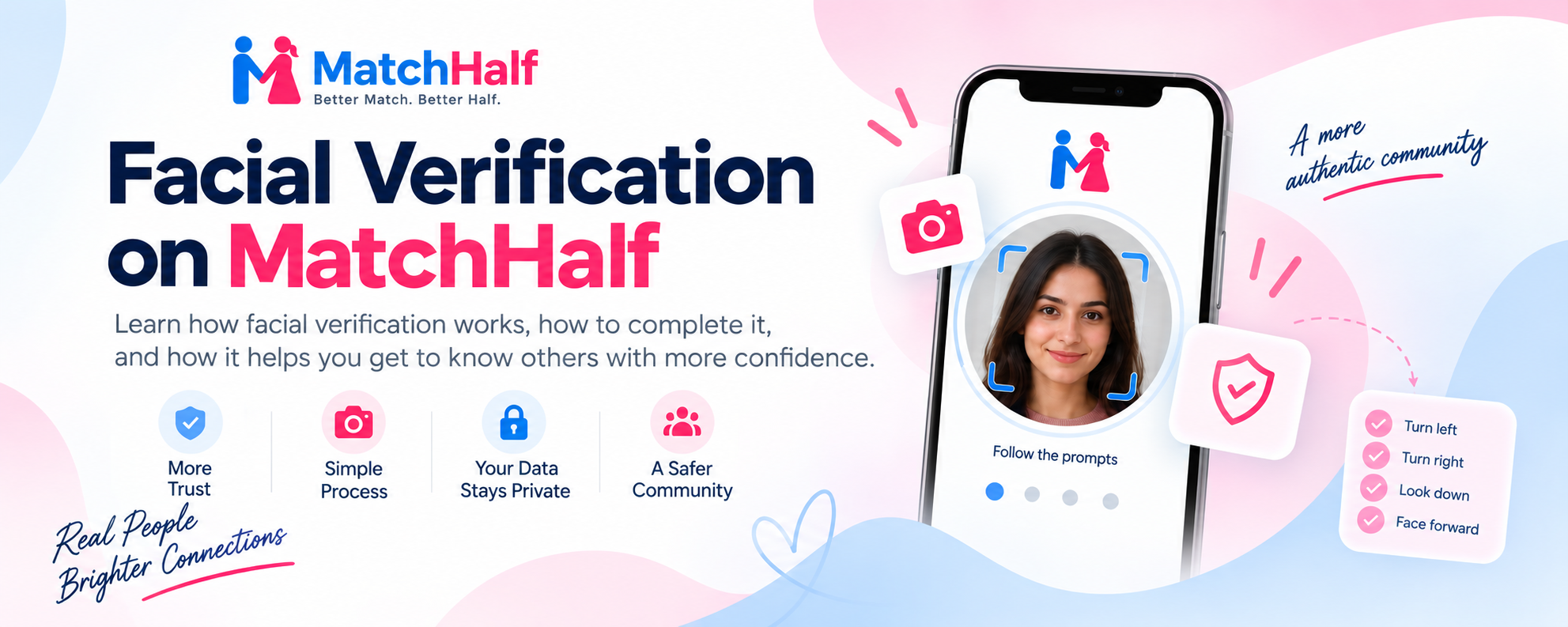

A profile photo helps you put a face to a conversation. Facial verification adds another piece of context: the person completing a guided camera capture can create a facial reference that MatchHalf compares with their profile photos.
This guide explains how the check works, how to complete it, and how to read the results when you are getting to know someone.
What facial verification checks
MatchHalf asks you to follow a short sequence of face movements on camera. It checks that one face is visible in each capture, that the requested movements are present, and that the face stays consistent across the sequence.
After a successful check, the final front-facing capture becomes your encrypted facial reference. Your existing gallery photos are compared with that reference, and future uploads can be compared too. You do not need to upload a profile photo before starting facial verification.
Email, phone, and facial verification answer different questions. Email and phone codes check access to those contact details. Facial verification checks motion and facial consistency, then provides a reference for photo comparisons. You can see these separate verification statuses in Settings.
How to complete facial verification
Open Settings → Verification and choose Start facial verification.
Scan the QR code with your phone, or choose Continue in this browser to use the current device. The phone capture page does not require another sign-in.
Read the consent information, agree to the capture and saved reference, and allow camera access.
Follow the prompts: face the camera, turn gently to your left, turn to your right, lower your chin, then face the camera again. The camera captures the sequence automatically.
Submit the sequence for verification, or retake it if needed. Return to Verification to check the result; you can leave the page while processing finishes.
Your capture link has a 20-minute window and allows one submission. Keep the link and QR code private. If the link expires, start a new session from your account.
Getting a clear capture
Use even lighting, keep your face fully visible, and make sure nobody else is in the frame. Hold the device steady and follow each prompt with a gentle movement. Keep both eyes visible when turning your head.
Stay on the capture page until the sequence is complete. Switching away or interrupting the camera can stop the capture, in which case you will need to start again. If camera access is blocked, check your browser permissions before retrying.
An unsuccessful result does not automatically mean a profile is fake. Lighting, framing, or an incomplete movement can prevent the check from finishing. Read the feedback, adjust your setup, and try again.
Understanding photo resemblance
Once your facial reference is ready, open your photo gallery to see available resemblance results. You can see results for your own photos, including drafts. Other members' access remains subject to photo privacy and membership rules.
A resemblance result measures visual similarity between a photo and the saved reference. A higher result means the detected face looks more similar to that reference. It is not a percentage showing how authentic an image is, and it does not prove that a photo has never been edited.
Facial verification does not publish your drafts or remove your photo privacy settings. You still decide which photos to publish and which audience can see them.
How it helps you assess a profile
Facial verification gives members an additional signal when deciding whether to begin a conversation. A completed capture and consistent photo comparisons can help connect the profile's pictures with the person who took part in verification. They also give profile owners a way to check how their uploads compare with their reference.
That signal has limits. This check does not verify a legal name, age, personal history, or intentions. It is not a guarantee against impersonation, replays, or deepfakes. Consider verification alongside the profile details and what you learn through respectful conversation.
Your capture and your control
The capture sequence is encrypted and removed after processing or within seven days. Successful verification saves a separate encrypted facial reference for future photo comparisons.
In Verification settings, you can update your facial reference or choose Remove facial verification. Removing verification clears the saved reference, facial verification status, and photo resemblance results. The confirmation explains what will be removed before you continue.
Before your next introduction
Keep your photos recent, complete the verification checks available to you, and review your photo privacy settings. When looking at someone else's profile, treat verification as useful context while taking time to get to know them.
Ready to begin? Open Verification settings. For the next step, our messaging guide explains requests, privacy controls, and how to manage conversations at your own pace.